SlidesAI

SlidesAI review

Generate structured, themed slide decks inside Google Slides and PowerPoint from a topic, document, or link.

By Ciroapp Editorial Team · Updated Sep 16, 2026

Commission may apply at no extra cost

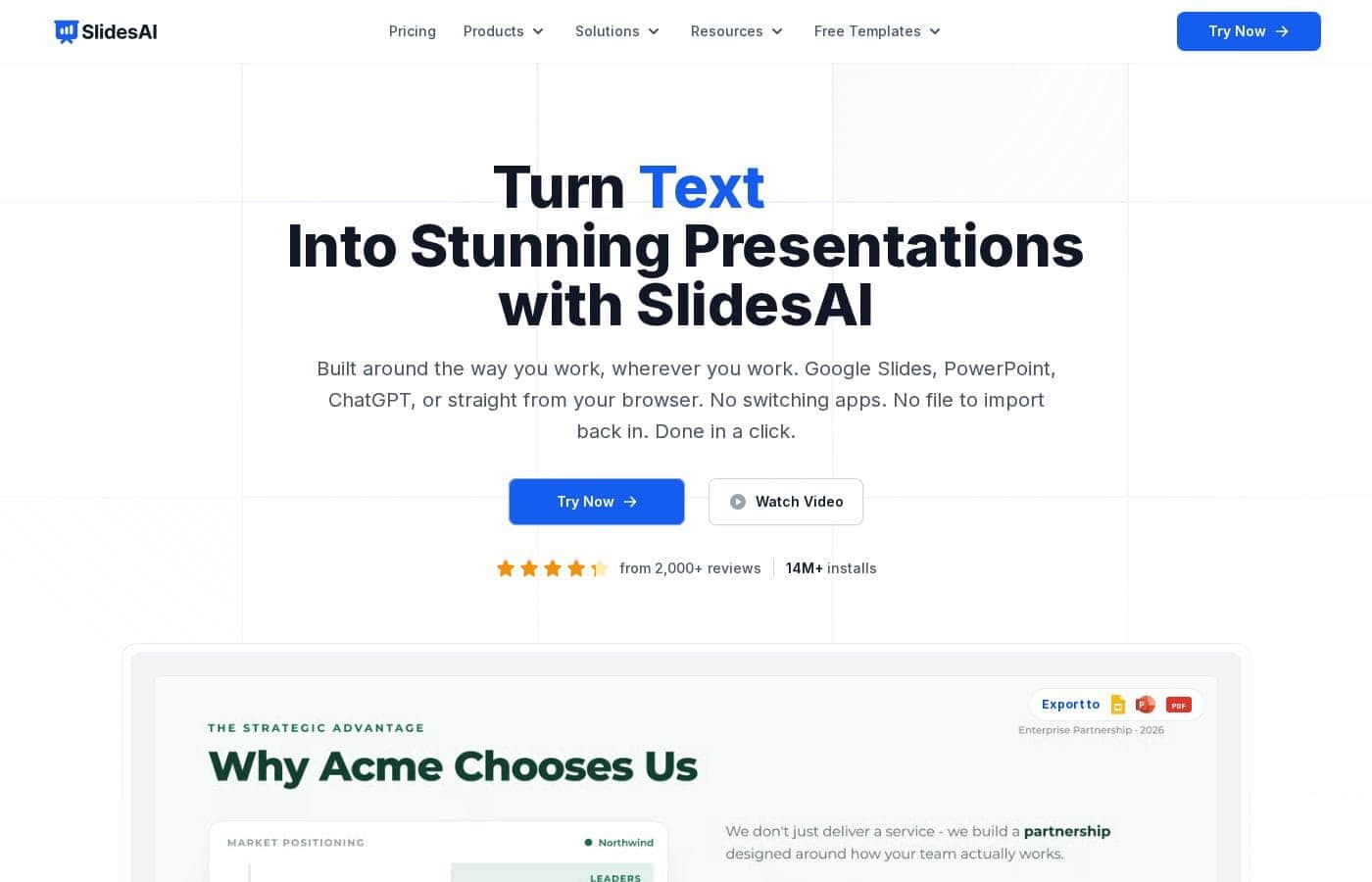
SlidesAI homepage screenshot

At a glance

Quick overview for SlidesAI: rating, pricing summary, key features, and highlights.
Vendor page checked Nov 22, 2026

Ciroapp score

4.0/ 5

SlidesAI builds a structured, themed first draft inside Google Slides or PowerPoint from a topic, document, or link, so there's no new tool to learn. You'll still need to fact-check and polish the output, and costs can climb with usage-based billing. Overall, it's a practical time-saver for anyone who already presents in Slides or PowerPoint.

Pros

  • Runs inside Google Slides and PowerPoint, so you keep your existing editor, shortcuts, and sharing workflow instead of learning a new platform.
  • Accepts three input types — topic, document, or link — letting you generate decks from material you already have rather than writing prompts from scratch.
  • Produces a reviewable slide outline before building the deck, so structural problems can be corrected before slides are generated.

Cons

  • Output is an AI first draft — facts, phrasing, and theme fit still require manual review, especially for academic or client-facing work.
  • Works only within Google Slides and PowerPoint — there is no standalone editor or support for other presentation tools.
  • Usage beyond the free tier depends on subscription or usage-based pricing, so heavy deck generation can increase costs depending on the plan.
Best for
  • Teachers and lecturers who already work in Google Slides and need to produce lesson or lecture decks on a regular basis.
  • Students who need to convert papers, reports, or research into class presentations quickly.
  • Business professionals who draft routine internal decks from documents and want to skip manual outline and layout work.
This section is a summary. Detailed sections about features, use cases, pricing, and reviews follow below.

What is SlidesAI?

SlidesAI is an AI presentation maker that lives inside the tools most people already use for slides. Instead of building a deck in a separate AI app and exporting it, you install it as an add-on in Google Slides or PowerPoint and generate presentations where you already edit. You supply a topic, a document, or a link, and the tool returns a structured outline plus a themed deck you can refine immediately.

The vendor positions it for educators, professionals, and students who want to cut deck-building time significantly.

SlidesAI is an add-on for Google Slides and PowerPoint that automates the first draft of a presentation. You provide input in one of three forms — a topic, an existing document, or a web link — and the AI processes it into a logical slide-by-slide outline. It then builds out the deck and applies a professionally designed theme, so you start from a formatted draft rather than a blank canvas.

Because it runs inside the host application, all normal Slides and PowerPoint editing tools remain available for refining the result.
Should you choose SlidesAI?

Quick buyer guidance before you compare plans or click through.

Choose it if

  • Teachers and lecturers who already work in Google Slides and need to produce lesson or lecture decks on a regular basis.
  • Students who need to convert papers, reports, or research into class presentations quickly.
  • Business professionals who draft routine internal decks from documents and want to skip manual outline and layout work.
  • Teams standardized on Google Workspace or Microsoft 365 that want AI generation without migrating to a standalone presentation tool.

Skip it if

  • Users whose presentations live outside Google Slides and PowerPoint — SlidesAI has no editor outside those two hosts.
  • Design-led presenters who need fully bespoke, brand-specific visual systems; the automatic themes are a starting point, not a replacement for custom design work.
  • Workflows where every fact must be verified before anything is shared — the AI draft still requires human fact-checking and editing before it is presentation-ready.

Next steps before buying

  1. 1Go to slidesai.io and install the SlidesAI add-on for Google Slides or the PowerPoint add-in from your editor's add-on marketplace, depending on where your decks live.
  2. 2Open Google Slides or PowerPoint, launch SlidesAI from the Extensions or Add-ins menu, and sign in — the free plan lets you begin without paying.
  3. 3Choose your input type (topic, document, or link), submit it, and review the generated slide outline before building the full deck.
  4. 4Generate the slides, adjust the applied theme or individual slides with your editor's native tools, and fact-check the content before presenting.

SlidesAI Key Features

✨ Works inside Google Slides and PowerPoint

SlidesAI installs directly into Google Slides and PowerPoint rather than running as a separate web app. You trigger it from the add-ons menu, generate your deck, and continue editing with the native tools you already know. This removes the export-and-import step that standalone AI presentation tools typically require.

✨ Flexible input: topic, document, or link

You are not limited to typing a prompt. Enter a topic for a from-scratch deck, supply a document to convert existing material into slides, or provide a link so the AI can pull content from a web source. This makes the tool usable both for new presentations and for repurposing work you have already done.

✨ Structured outline before slide generation

SlidesAI first produces a slide-by-slide outline from your input, which lets you check the narrative flow before full slides are created. Adjusting the outline at this stage is considerably faster than restructuring finished slides afterward, and it keeps the final deck aligned with your intent.

✨ Automatic professional theming

Generated slides are not left as plain text boxes: the tool applies a professionally designed theme to the deck as part of the generation process. You still have full control to change the theme or adjust individual slides using the host application's standard design tools.

Use Cases

💡 Educators preparing lessons and lectures

Teachers can enter a lesson topic or supply course notes and receive a themed, structured deck ready to present in class. Because the output opens directly in Google Slides, it drops straight into existing classroom workflows, including sharing through Google Classroom.

💡 Students turning papers into presentations

A student with a finished report or essay can feed the document into SlidesAI and get an outline and slides summarizing it. This shortens the path from completed writing to a class presentation, with the applied theme handling much of the visual polish.

💡 Professionals drafting business decks

For internal updates, project briefings, or proposals, professionals can pass in a document or a link and get a first-draft deck to refine in PowerPoint or Slides. The tool's speed advantage matters most in this scenario, where deck volume is high and content tends to follow familiar structures.

💡 Repurposing existing content into slides

Teams with blogs, documentation, or reports can convert that material into presentation form using the document and link input modes. This avoids manually copy-pasting content into slides and rebuilding structure from scratch.

SlidesAI pricing

Prices not verified yet — see the vendor page.

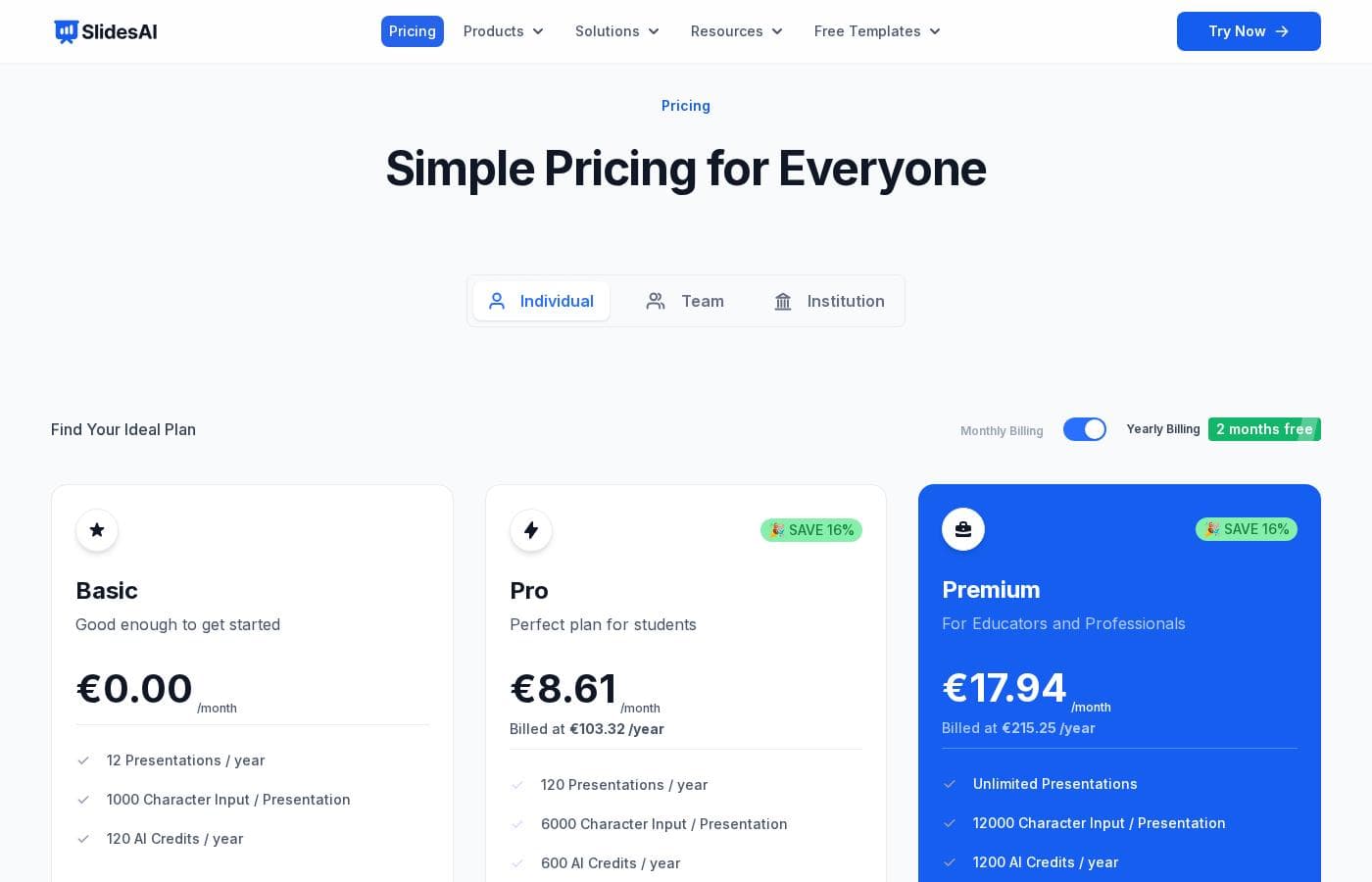
SlidesAI's pricing page

SlidesAI pricing page screenshotView pricing page screenshot

Price history

Tracking prices since Oct 1, 2026. No price change detected yet.

Pricing types: Free plan, Monthly subscription, Yearly subscription, Usage-based pricing

Pricing notes

SlidesAI pricing: Plans from $0/month Billing options: Free plan, Monthly subscription, Yearly subscription, Usage-based pricing

Email me when SlidesAI changes price

One email when we detect a price change on the vendor's pricing page. No newsletter, no deals. Unsubscribe in one click.

User Reviews

No reviews yet.

Write a Review

Write a Review for SlidesAI
0/100 characters
0/2000 characters

Why use SlidesAI?

The main reason to choose SlidesAI over standalone AI deck generators is workflow continuity: there is no new interface to learn and no import/export step between tools. Generating an outline before the full deck also gives you a checkpoint to fix the structure before slides are built.

For anyone who already presents through Google Slides or PowerPoint, the tool removes most of the manual structuring and layout work from the drafting stage.

SlidesAI alternatives

Other tools in the AI Presentation Maker category

View all AI Presentation Maker tools
Gamma

Gamma

AI Presentation Maker4.4/5

Gamma is your AI design partner for creating presentations, websites, social media, and more. All at the speed of thought.

Presentory

Presentory

AI Presentation Maker4/5

Presentory is an AI presentation maker that dramatically streamlines your workflow. It utilizes the power of the advanced GPT-4 language model to generate natural, understandable, and contextually appropriate text. The tool guides you from entering a simple topic to generating a professional PPT in just a few clicks. It’s ideal for managers, educators, or anyone needing to efficiently create high-quality presentations that are ready to share. This focus on speed and precision means you can stop worrying about formatting and start focusing on your message.

Presentations.AI

Presentations.AI

AI Presentation Maker3.7/5

Presentations.AI is often called the ChatGPT for Presentations, and it's designed to bring your ideas to life instantly. This intuitive platform is a powerful AI slide maker that creates stunning PPTs at the speed of thought. 💡 It allows you to transform simple ideas, outlines, or even documents into complete, professional decks with virtually zero design work required. It’s built for busy presenters, ensuring seamless editing and creation across all your devices.

SlidesAI FAQ

Do I need to learn a new presentation tool to use SlidesAI?

No. SlidesAI works as an add-on inside Google Slides and PowerPoint. You install it into your existing slide editor, generate the deck from there, and continue editing with the same native tools you already use — there is no separate platform to master.

What can I use as input for generating a presentation?

SlidesAI accepts three input types: a typed topic for a from-scratch deck, an existing document you want converted into slides, or a web link the AI can pull content from. It processes whichever input you provide into a structured slide outline before building the full deck.

Is there a free version of SlidesAI?

Yes. Plans start at $0/month with a free plan, so you can try the workflow without paying.

Who is SlidesAI best suited for?

The tool is aimed at educators, professionals, and students — anyone who already presents through Google Slides or PowerPoint and wants to reduce deck-building time. Its document and link input modes are particularly useful for converting existing written material into presentations.

Ready to try SlidesAI? Check out the official site or pricing.

Are you SlidesAI? Claim this listing · Get the badge